Networking
Telstra Smart Modem Gen 4: why printers and smart devices will not connect
Printers, smart TVs, cameras and smart plugs fail to connect to the Telstra Smart Modem Gen 4 because band steering, Wi-Fi 7 and LAN IPv6 are enabled by default and most simple devices only support 2.4 GHz. Disable all three from the modem admin page, turning off Wi-Fi 7 before band steering.
Three features are enabled by default that older and simpler devices cannot cope with. Staff report it as a broken printer, which is why it takes a day to find.
Last updated
The cause
Three defaults, three different failures.
Phones and laptops are fine, which is exactly what makes it look like a device fault.
Band steering
Both radio bands share one network name and the modem decides which one each device uses. Most printers, cameras and sensors only have a 2.4 GHz radio, so they are pushed onto a band they cannot use and disappear from the network.
Wi-Fi 7
The newest standard, enabled by default. Devices are meant to negotiate down to what they support; a lot of older hardware does not manage that cleanly and either fails to join or connects unreliably.
LAN IPv6
The modern addressing scheme running alongside the traditional one. Printer discovery protocols were largely built for the older scheme and behave inconsistently when both are active.
Before you start
Get into the modem, and change one thing at a time.
Applying all three at once tells you nothing about which mattered.
Connect to the modem by Wi-Fi or Ethernet — this is not reachable over mobile data — then open http://192.168.0.1 and sign in with the password printed on the unit unless it has been changed. Apply each change and re-test the device before moving to the next. Menu labels shift between firmware releases, so work from the setting names rather than the exact path.
Step 1
Turn off LAN IPv6.
Least disruptive, and it most often fixes “connected but the computer cannot find it”.
Settings › LAN, then the LAN / DHCP IPv6 section. Switch Enable to Off and apply.

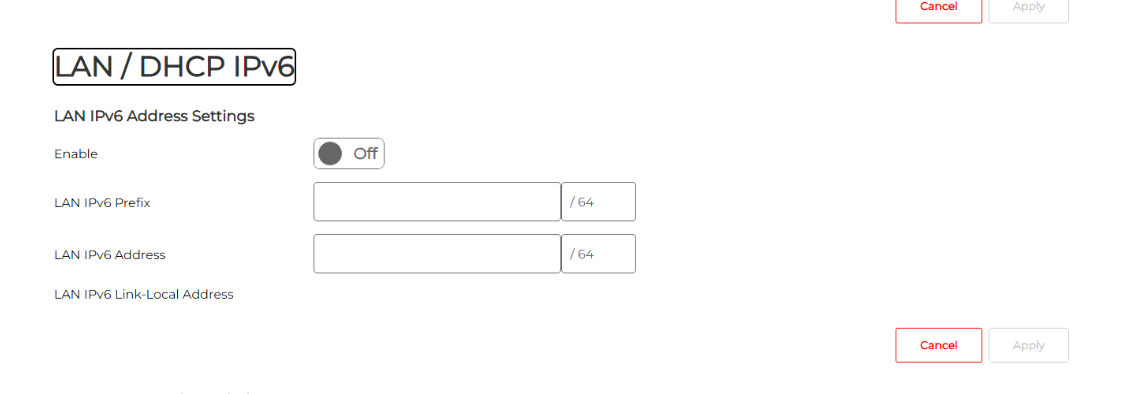
This affects IPv6 inside the network only. The internet connection is unchanged and throughput is unaffected. Re-test the device now.
Step 2
Drop Wi-Fi 7 back to Wi-Fi 6.
On both bands — they are configured separately.
Wi-Fi Settings › Advanced. Set Wireless Mode to the Wi-Fi 6 option on the 2.4 GHz tab and again on the 5 GHz tab, applying each time.
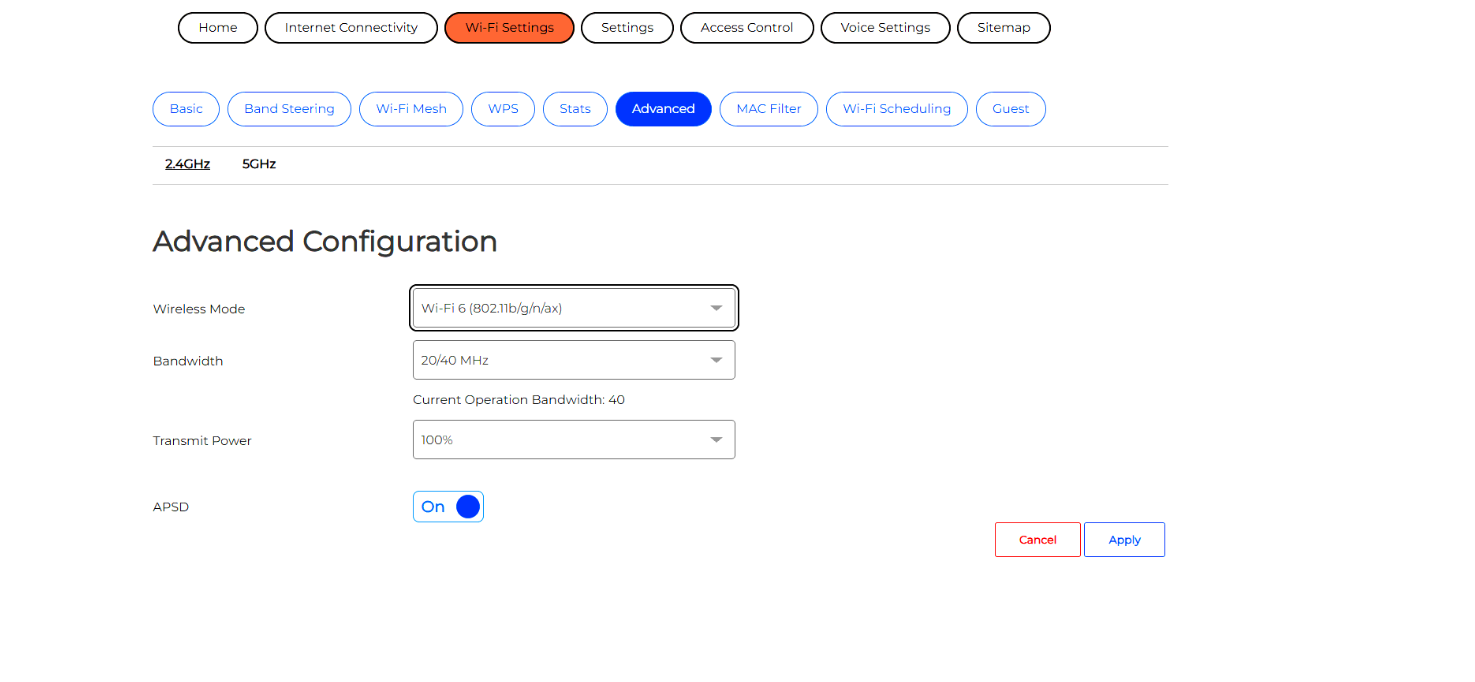
This must be done before step 3. The modem will not allow Band Steering to be changed while Wi-Fi 7 is enabled, and says so on that page: “When Wi-Fi 7 is enabled BandSteering cannot be switched.” A Band Steering toggle that does nothing is this dependency, not a fault — and it is where most people abandon the job.
Step 3
Turn off band steering.
The change that resolves most printer cases outright.
Wi-Fi Settings › Band Steering. Switch Enable to Off and apply.
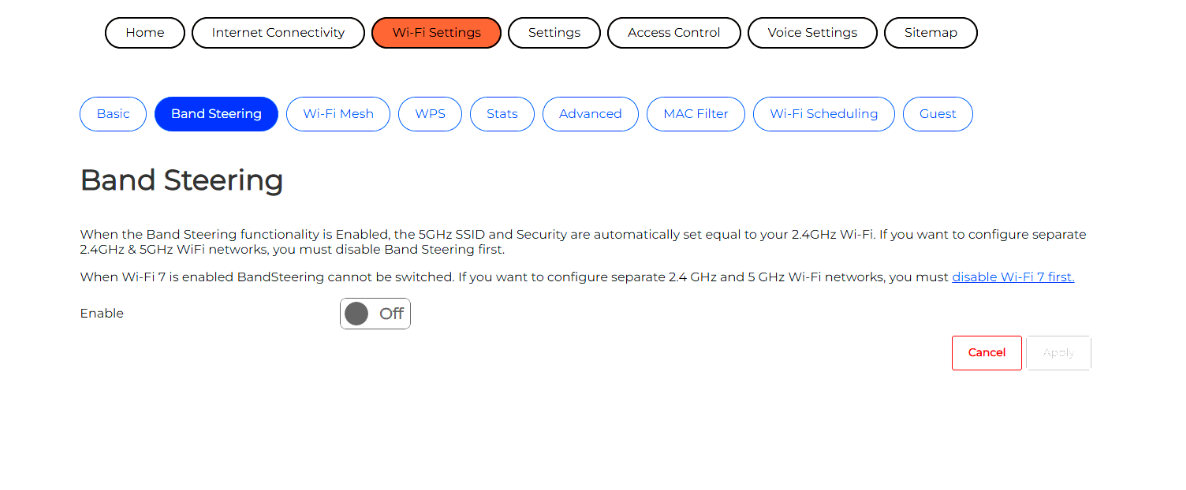
The 2.4 GHz and 5 GHz networks now carry separate names, so two entries appear in the Wi-Fi list instead of one. That is the point: the printer can be joined to 2.4 GHz deliberately, by name, and will stay there rather than being shuffled onto a band it cannot use. Put staff laptops and phones on 5 GHz and everything simple on 2.4 GHz.
Afterwards
The device is still holding the old network details.
Changing the modem alone will not bring it back.
- Power-cycle the device at the wall for ten seconds. A menu restart is not the same thing.
- Remove the saved Wi-Fi network on the device, then join the 2.4 GHz network by name.
- Delete the old printer entry on the computer and add it again. A stale entry points at an address that no longer exists, looks correct in the printer list, and silently fails.
- Print a real test page, not a preview.
What it costs
Worth being straight about the trade-offs.
All three are reversible and none of this is a factory reset.
Turning off Wi-Fi 7 gives up Wi-Fi 7 throughput on hardware that supports it — in practice almost nothing in an Australian office yet, and on a typical NBN service the connection is the limit rather than the wireless. Turning off band steering means managing two network names instead of one: marginally less convenient, considerably more predictable. Turning off LAN IPv6 has no practical effect on a small network.
Frequently Asked Questions
Will turning these off slow the internet down?
No, not noticeably. Line speed is set by the plan and the connection, and none of these settings touch it. Wi-Fi 6 still carries the fastest residential services available, so the wireless is not the bottleneck. Turning off LAN IPv6 has no speed effect at all.
Why will the Band Steering switch not move?
Because Wi-Fi 7 is still enabled. The modem locks Band Steering while Wi-Fi 7 is on and says so on that page. Set Wireless Mode to Wi-Fi 6 on both the 2.4 GHz and 5 GHz tabs first, apply, then return to Band Steering and the toggle will move.
Why are there suddenly two Wi-Fi networks?
That is band steering being off, and it is the desired outcome. Each band now has its own name, so every device can be placed on the right one deliberately — laptops and phones on 5 GHz for speed, printers and sensors on 2.4 GHz where they stay connected.
Is the printer simply too old?
Rarely. Plenty of current printers are 2.4 GHz only, because range matters more than throughput for print jobs. The fault is the modem defaulting to features that assume every device on the network is modern, not the printer being past its life.
Can these settings be put back later?
Yes, at any time, and none of this is a factory reset. If the device is replaced with newer hardware the features can be switched back on. Change one at a time on the way back as well, so a regression is easy to attribute.
Get help
Devices dropping off the network?
Tell us what is failing and we will tell you whether it is this, what it takes to fix, and whether the rest of your site has the same problem.